Customize Columns for Importing Data into Sentinel Visualizer
Choose a Subset of Columns to Import
Sentinel Visualizer lets you import data from a variety of formats such as an Excel spreadsheet, text file, and table or query from an Access or SQL Server database.
After choosing the source data, a screen appears with a preview of the data and options. By default, all the columns are included.
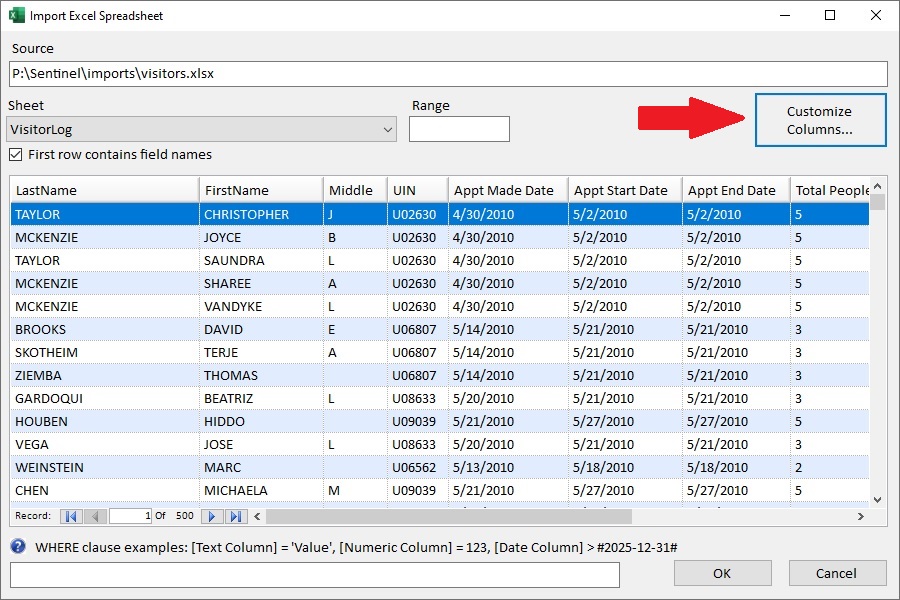 Import Excel Options
The [Customize Columns] button lets you select just the columns to include and create calculated columns.
The Customize Columns dialog lets you select the columns to include in your import. Just choose the columns you want and their order. This is especially helpful if your source data has many columns.
The [>] button moves the selected column(s) from the Available Columns to Selected Columns list. The [<] button moves them back.
The up and down buttons on the right, reorder the selected columns.
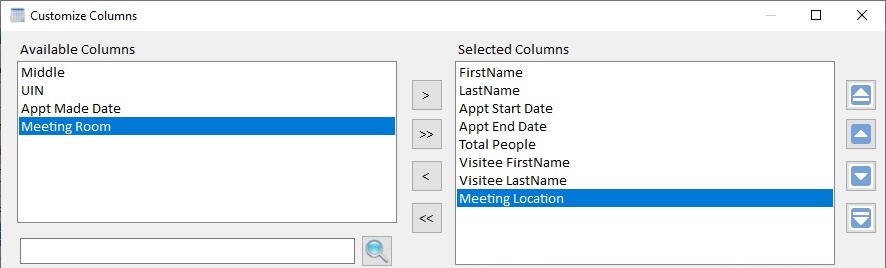 Choose Columns and
Specify Their Order
Choose Columns and
Specify Their Order
Click [OK] to return to the previous screen. Notice the preview shows the selected columns:
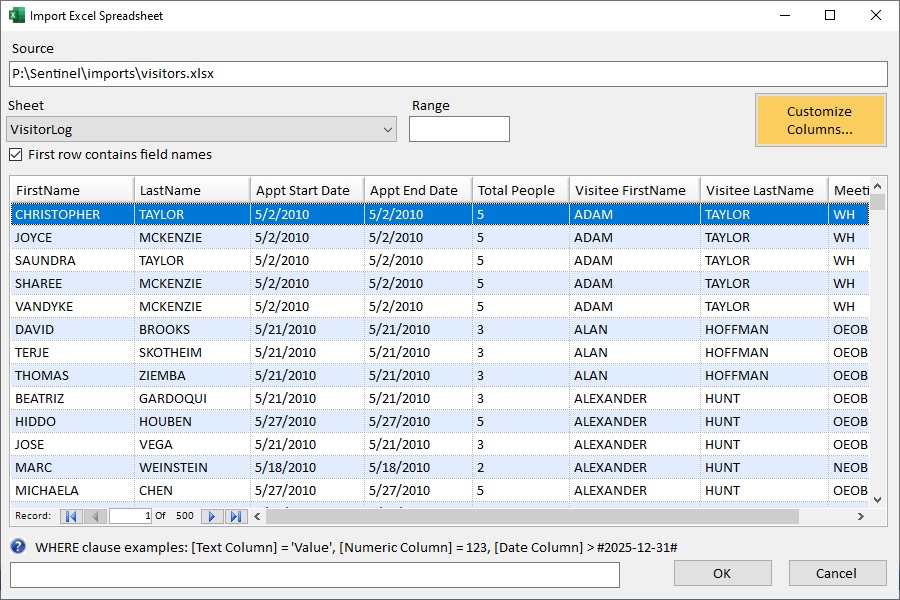 Customized Columns from Excel
Calculated Columns
In addition to selecting existing columns, you can also create Calculated Columns using formulas and references to column values.
Reference columns with brackets around the [Column Name].
You can have multiple Calculated Columns.
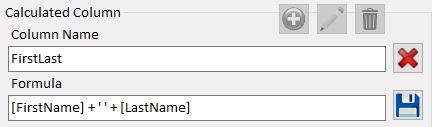 Specify the Column Name and Formula
Example of Calculated Columns
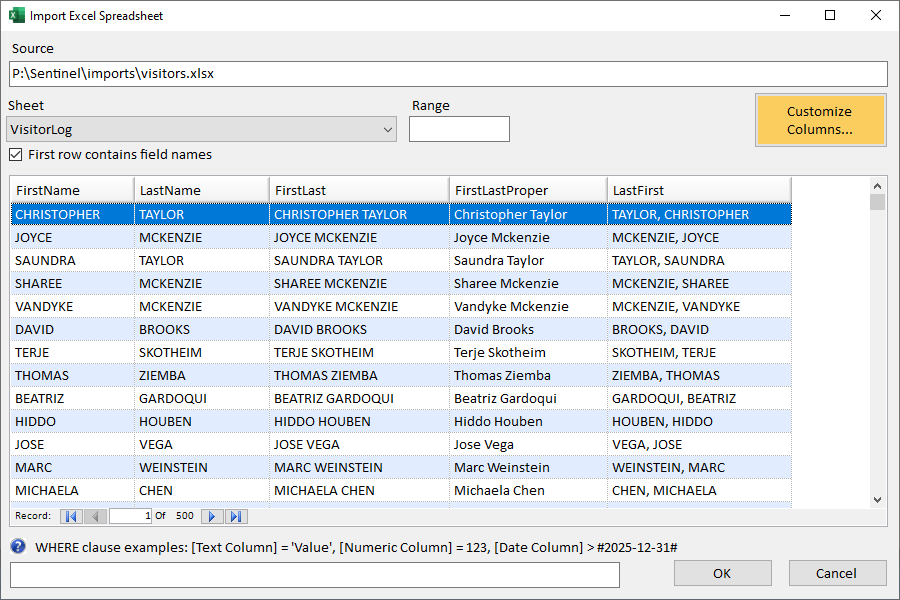 Example of 3 Custom Columns
Custom Columns
Notice the three calculated columns using data from the First and Last name columns:
- FirstLast: Combine first and last names with space between: [FirstName] + ' ' + [LastName]
- FirstLastProper: Combine first and last names and use proper case so only the first letter: StrConv([FirstName] + ' ' + [LastName], 3)
- LastFirst: Last name, comma, first name: [LastName] + ', ' + [FirstName]
Calculated Column Formulas
The underlying data connection supports a wide range of operations and functions.
Perform math operations on your numeric columns.
| Operator | Description | Example | Result |
|---|---|---|---|
| + | Addition | [Sales] + [Tax] |
Adds Sales and Tax columns |
| - | Subtraction | [Revenues] - [Expenses] |
Subtracts Expenses from Revenues column for Profit |
| * | Multiplication | [UnitPrice] * [Quantity] |
Multiplies UnitPrice and Quantity for Total Sales |
| / | Division | [TotalSales] / [Quantity] |
Divides TotalSales by Quantity for Average Price |
Perform string operations to combine strings, remove leading and trailing spaces, extract and replace strings, and measure length.
| Operator | Description | Example | Result |
|---|---|---|---|
| + | Concatenation |
[FirstName] + ' ' + [LastName] [LastName] + ', ' + [FirstName] |
First name and last name with a space between them: John Doe First name and last name with a comma and space between them: Doe, John |
| Trim(string) | Remove whitespace | Trim([FirstName] + ' ' + [LastName]) |
After first name and last name are combined with a space between them, eliminate the space if the first or last name is missing. |
| LCase(string) | Convert to lowercase For SQL Server, use the LOWER command |
LCase([FirstName]) LOWER([FirstName]) |
JOhN -> john |
| UCase(string) | Convert to uppercase For SQL Server, use the UPPER command |
UCase([FirstName]) UPPER([FirstName]) |
JOhN -> JOHN |
| StrConv(string, 3) | Convert to Proper case: first letter of each word capitalized (Not available in SQL Server) |
StrConv([FirstName], 3) |
JOhN doE -> John Doe |
| Left(string, n) | Leftmost n characters where n is the number of letters | Left([FirstName], 1) |
First letter of First Name: Beth -> B |
| Right(string, n) | Rightmost n characters where n is the number of letters | Right([SSN], 4) |
Last 4 digits of social security number: 123-45-6789 -> 6789 |
| Mid(string, start, length) | Extract a number of characters (length) from the Start character (base 1) For SQL Server use Substring |
Mid([Phone], 2, 3) |
(703) 356-4700 -> 703 Get the 3 digit area code starting from the second character. |
| Substring(string, start, length) |
Extract Length characters from the Start character number. Similar to Mid, but Start is base 0. |
Substring([Phone], 1, 3) |
(703) 356-4700 -> 703 Get the 3 digit area code starting from the second character. The start value is 1 because the characters are counted from 0. |
| Replace(string, find, replace) | Replace all occurrences of the Find string with Replace string |
Replace([Country], 'United States', 'USA') Replace([Column], '-', '/') |
Replace entire value: United States -> USA Replace multiple hyphens: 08-22-2025 -> 08/22/2025 |
| Len(string) | String length (number of characters) | Len([FirstName]) |
Beth -> 4 |
| InStr([start], string, substring) | In String function: find the first location of substring in a string. 0 means it is not found. Optional start number if not starting at the first character of string. For SQL Server, use CHARINDEX. |
InStr('Arthur Conan Doyle', ' ') |
Location of the first space > 7 |
| CHARINDEX(substring, string, [start]) | For SQL Server. find the first location of substring in a string. 0 means it is not found. Optional start number (base 0) if not starting at the first character of string. Note the parameter order is different from the InStr function. |
CHARINDEX(' ', 'Arthur Conan Doyle') |
Location of the first space > 7 |
| InStrRev([start], string, substring) | In String Reverse function: find the last location of substring in a string. 0 means it is not found. (Not available in SQL Server) |
InStrRev('Arthur Conan Doyle', ' ') |
Location of the last space > 13 |
| Combine Left and InStr to get First Name | Left part of the string to the first character before the space (the minus 1) | Left('Arthur Conan Doyle', InStr('Arthur Conan Doyle', ' ') - 1) |
Text before the first space > Arthur |
| Combine Right, Len and InStr to get text after first space | Right part of the string after the first character. Subtract the location of the space from the lenght of the string. |
Right('Arthur Conan Doyle',
Len('Arthur Conan Doyle') - InStr('Arthur Conan Doyle', ' '))
|
Text after the first space > Conan Doyle |
DateSerial and TimeSerial functions converts strings and numbers to DateTime columns. Use the Left, Mid, and Right functions to split fields into date and time parts.
| Operator | Description | Example | Result |
|---|---|---|---|
| DateSerial(year, month, day) | Create date from parts | DateSerial(Left([DateNumber],4), Mid([DateNumber],5,2), Right([DateNumber],2)) |
For [DateNumber] column with values in YYYYMMDD format: 20250819 -> 8/19/2025 |
| TimeSerial(hour, minute, second) | Create time from parts | TimeSerial(Left([TimeString],2), Mid([TimeString],3,2), Mid([TimeString],5,2)) |
For [TimeString] column with values in hhmmss format: 080102 -> 8:01:02 AM |
| + |
Add Data and Time (date is an integer, time is a fraction) |
DateSerial(Left([DateNumber],4), Mid([DateNumber],5,2), Right([DateNumber],2)) + TimeSerial(Left([TimeString],2), Mid([TimeString],3,2), Mid([TimeString],5,2)) |
For [DateNumber] and [TimeString] columns as defined above: 20250819 and 180102 -> 8/19/2025 06:01:02 PM |
The Immediate IF function IIF makes a comparison to return one of two values based on the whether the comparison is TRUE or FALSE.
This can return different column values based on the logic.
| Operator | Description | Example | Result |
|---|---|---|---|
| IIf(condition, truePart, falsePart) | Immediate IF conditional logic |
IIf([Directomn]='OUT', [Phone1], [Phone2]) |
Data: Two phone number columns ([Phone1], [Phone2]) and a Direction column with IN or OUT indicating inbound or outbound calls. IIf([Directomn]='OUT', [Phone1], [Phone2]) IIf([Directomn]='IN', [Phone2], [Phone1]) |
Comparison Operators
| Operator | Description | Example | Result |
|---|---|---|---|
| = | Equal | [Column1] = [Column2] |
Value in Column1 is equal to Column2 |
| <> | Not Equal | [Column1] <> [Column2] |
Value in Column1 is not equal to Column2 |
|
< <= |
Less than Less than or Equal |
[Column1] < [Column2] |
Value in Column1 is less than Column2 |
|
> >= |
Greater than Greater than or Equal |
[Column1] > [Column2] |
Value in Column1 is more than Column2 |
Logical Operators
| Operator | Description | Example | Result |
|---|---|---|---|
| AND | Logical AND |
([Price] > 0) AND (Quantity > 0) |
True if both conditions are true: Price and Quantity are both greater than zero |
| OR | Logical OR |
(Len([ZipCode]) < 5) OR (Len([ZipCode]) > 10) |
True if length of ZipCode is less than 5 or more than 10 |
| NOT | Logical NOT |
NOT [IsDeleted] |
True if IsDeleted is false |
Among Multiple Values and Pattern Matching
| Operator | Description | Example | Result |
|---|---|---|---|
| IN | Among multiple values |
[State] IN ('DC', 'MD', 'VA')
|
True if State abbreviation is Washington DC, Maryland, or Virginia |
| LIKE | Pattern match with % as wildcard |
[FirstName] LIKE 'A%' |
True if FirstName starts with the letter A. Use LIKE '%A%' to find strings containing the letter A in any position. |
Additional Resources
Microsoft Certified Partner

Partners Welcome
Do you provide services to government and commercial customers seeking analytic solutions?
Contact us
In-Q-Tel Portfolio Company

Discover
Sentinel Visualizer Comparison to Harris/IBM's i2 Analyst's Notebook